Cronometer.
In context.
Use the nutrients Cronometer shares with Apple Health alongside your activity, sleep and measurements in a compatible AI.
See the setupFor iPhone. Check your AI account and records.
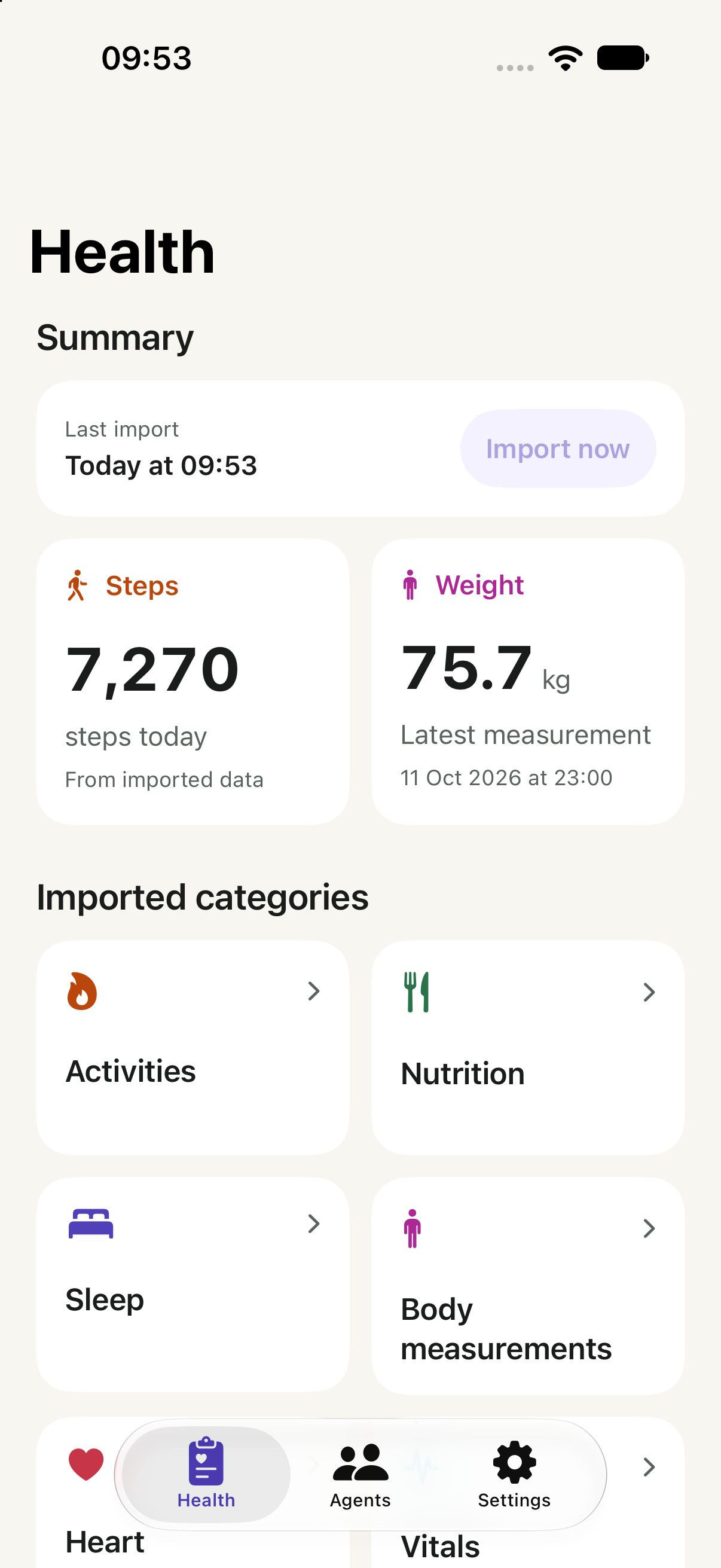
 HealthSync→ Your AI
Your nutrients, beside your routine.
Selected records.Approved by you.
Make room for the whole week.
A food log captures one part of your routine. HealthSync lets you bring the supported nutrients in Apple Health into a conversation with the other records you choose.
Cronometer exports a subset of its data to Apple Health. This connection does not promise its full nutrient database, recipes or food-by-food diary.
Check before
you start.
Confirm your records and your destination before connecting.
Check one nutrient first
In Apple Health, find a nutrient you use, such as Protein. Open Show All Data and inspect a recent entry. Check that its source is Cronometer before importing it into HealthSync.
See the nutrient coverage below.
Using Claude?
Open Customize → Connectors. Look for + Add → Add custom connector. An organisation owner may need to add it first.
Claude documents custom connectors on Free, Pro, Max, Team and Enterprise; Free allows one. Your workspace can restrict access.
Check Claude’s current account and setup requirements ↗
Provider documentation checked 20 October 2026. Account eligibility is separate from a completed HealthSync connection.
Using another AI client?
Check its remote MCP and OAuth support against the client requirements. In HealthSync, open Agents and follow the guide for that provider. Support for MCP alone does not confirm compatibility with HealthSync.
Find records and sources in Apple Health ↗. Depending on iOS, open Search or Browse, then the category and measurement.
Ask with context.
Choose an example to see what context you could share.
Summarise the nutrition records available for the past seven days. Say which nutrients are present and identify missing days.
Context to share
Available nutrition quantities
Know what
comes through.
Only supported records in Apple Health, within the access you approve.
Available with your permission
- Nutrition quantities
- Biotin, caffeine, calcium and carbohydrates are named in Cronometer’s permission guide. See the coverage table and verify recent entries.
- Activity & sleep
- Records your other apps and devices share with Apple Health.
- Body measurements
- Permitted measurements already present in your library.
The limits matter
Every nutrient in Cronometer
The Apple Health export is a subset, not the complete Cronometer database.
Recipes & food entries
This connection cannot create recipes or log meals in Cronometer.
Which nutrients can you use?
Cronometer’s permission guide lists biotin, caffeine, calcium and carbohydrates as write categories. Permission does not prove that an entry was exported.
| Record | Cronometer → Apple Health | Apple Health → HealthSync |
|---|---|---|
| Biotin, caffeine, calcium, carbohydrates | Named in the permission guide; check recent entries. | Supported |
| Calories, protein, carbohydrates, total fat | Check write permission and a recent source entry. | Supported |
| Fibre, sugar, sodium, vitamin D, iron, magnesium | Export of these types is not verified here. Check individually. | Supported when present |
| Targets, calculated scores, recipes | Not established by nutrient export. | Not supplied through this nutrient route |
All 39 nutrition quantities HealthSync supports
These are HealthSync’s supported types, not a promise that Cronometer exports all of them.
- Energy (calories) (kcal)
- Protein (g)
- Carbohydrates (g)
- Total fat (g)
- Fiber (g)
- Sugar (g)
- Water (mL)
- Caffeine (mg)
- Biotin (mg)
- Calcium (mg)
- Chloride (mg)
- Cholesterol (mg)
- Chromium (mg)
- Copper (mg)
- Monounsaturated fat (g)
- Polyunsaturated fat (g)
- Saturated fat (g)
- Folate (mg)
- Iodine (mg)
- Iron (mg)
- Magnesium (mg)
- Manganese (mg)
- Molybdenum (mg)
- Niacin (B3) (mg)
- Pantothenic acid (B5) (mg)
- Phosphorus (mg)
- Potassium (mg)
- Riboflavin (B2) (mg)
- Selenium (mg)
- Sodium (mg)
- Thiamin (B1) (mg)
- Vitamin A (mg)
- Vitamin B12 (mg)
- Vitamin B6 (mg)
- Vitamin C (mg)
- Vitamin D (mg)
- Vitamin E (mg)
- Vitamin K (mg)
- Zinc (mg)
Cronometer’s official integration guide ↗ · Checked 20 October 2026. HealthSync support comes from the app’s current data catalogue.
Try one record: Apple Health → Search or Browse → Nutrition → your nutrient → Show All Data. Inspect the source and date, then look for that record in HealthSync. A permission toggle alone does not confirm an export.
From records.
To your AI.
Import your records, connect your AI, then choose when to share.
Enable Cronometer sharing
In Cronometer, open More → Connect Apps & Devices → Apple Health. Allow the nutrition types you want it to write. Check recent records in Apple Health, then import those types into HealthSync.
Choose your agent
Open Agents in HealthSync and follow your provider’s guide. In Claude, open Customize → Connectors → + Add → Add custom connector. Enter the address below and use OAuth sign-in.
For Team or Enterprise, an organisation owner may need to add the connector first. Check your account.
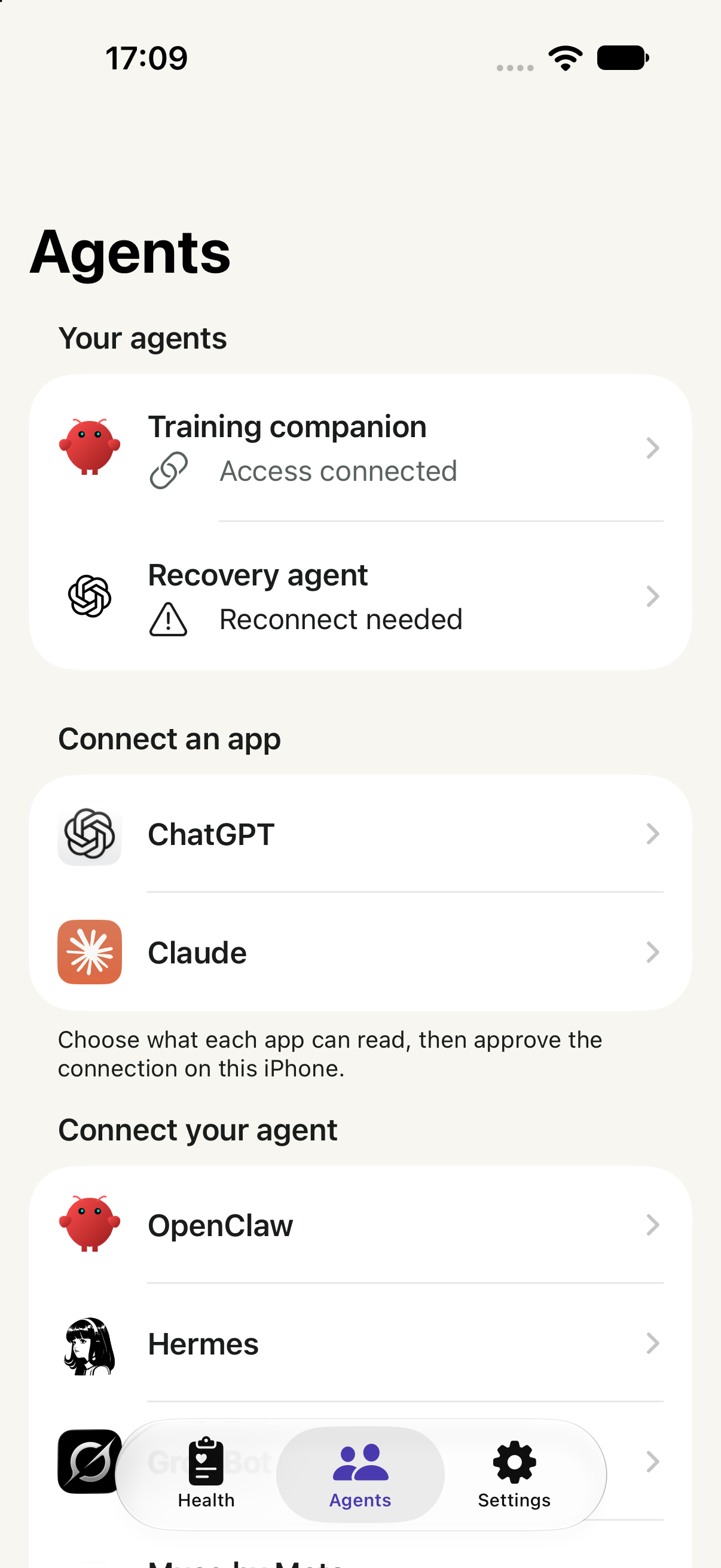
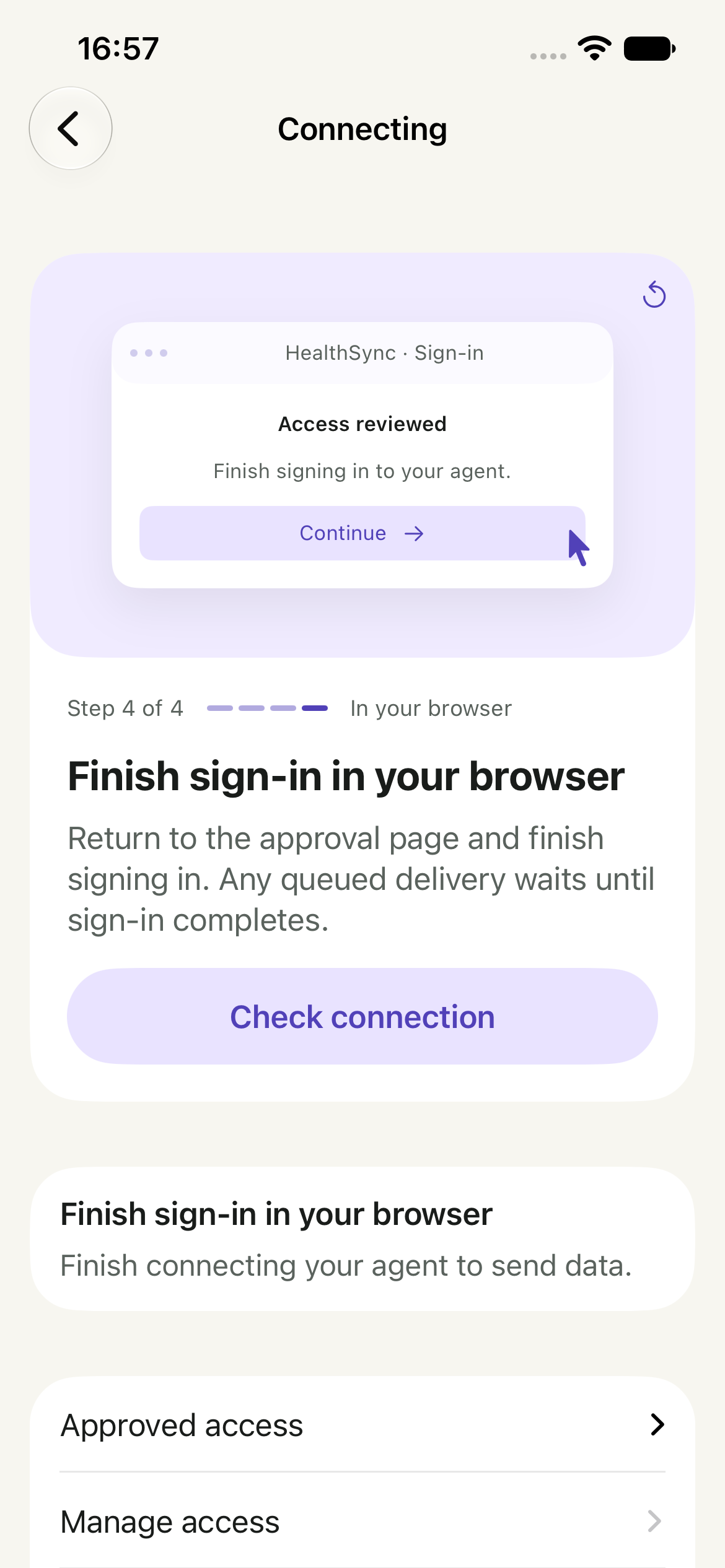
Review access on iPhone
Open HealthSync from the approval page. Review the recipient, purposes and categories. Choose one of the sharing paths below, then return to the original browser to finish sign-in.
Approval, browser sign-in and receipt of your records are separate states.
HealthSync’s remote MCP address
https://api.healthsync.me/mcpChoose when to share
Share now
Choose Connect & share data. This queues a one-time send of your selected records after you finish browser sign-in. Recent data can become ready while older history imports.
Connect first
Choose Connect without sending. After browser sign-in, return to Agents → your connection → Send data in HealthSync when you are ready. Connecting alone sends no records.
When HealthSync shows the data is ready, enable the connector in your AI conversation and ask a question. Only a confirmed receipt means the agent retrieved it. Recurring updates are a separate choice.
Connected, but your agent has no data?
Check that the records exist in your HealthSync library, that this connection can read their categories, and that browser sign-in is complete. If you connected without sending, choose Send data. Follow the connection’s status or retry guidance, then ask the agent to read HealthSync again.
App captures use illustrative data.
Your records.
Your decision.
A library on your iPhone. Access for the agent you approve.
Sending selected records uses HealthSync’s cloud service. Temporary transfer copies are removed after confirmed receipt or expire after seven days. Copies your agent receives follow that provider’s policies.
You can narrow, pause or revoke an agent’s access in HealthSync.
Read the privacy policy ↗Before you connect.
Can this replace an unofficial Cronometer MCP?
For reading supported records already shared with Apple Health, this offers a different route. It does not provide the same access as a direct Cronometer API or food-logging tool.
Will all micronutrients be available?
Do not assume the full Cronometer catalogue is exported. The nutrient table separates documented write categories from HealthSync support and types that still need checking. Confirm a recent source entry before connecting.
Can I combine it with my scale or watch?
If those devices write supported measurements to Apple Health, HealthSync can import them with your permission.
What if my data is missing?
Check the records in Apple Health first. If the source app has not written them there, HealthSync cannot retrieve them from that app.